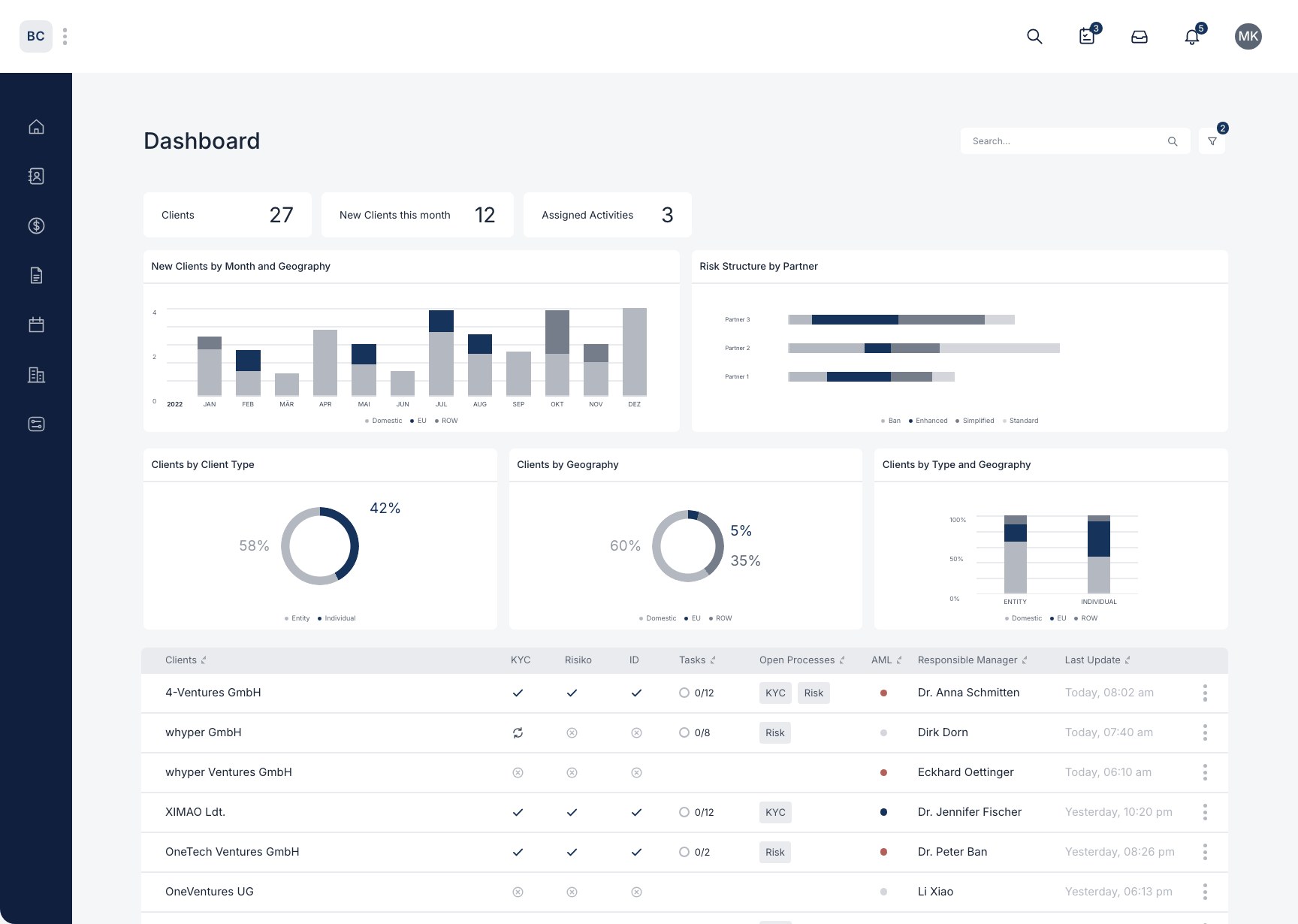
How do I add and manage matters and workflows for a customer?
Here we show you how to add and manage matters and workflows for a client.
Create a matter
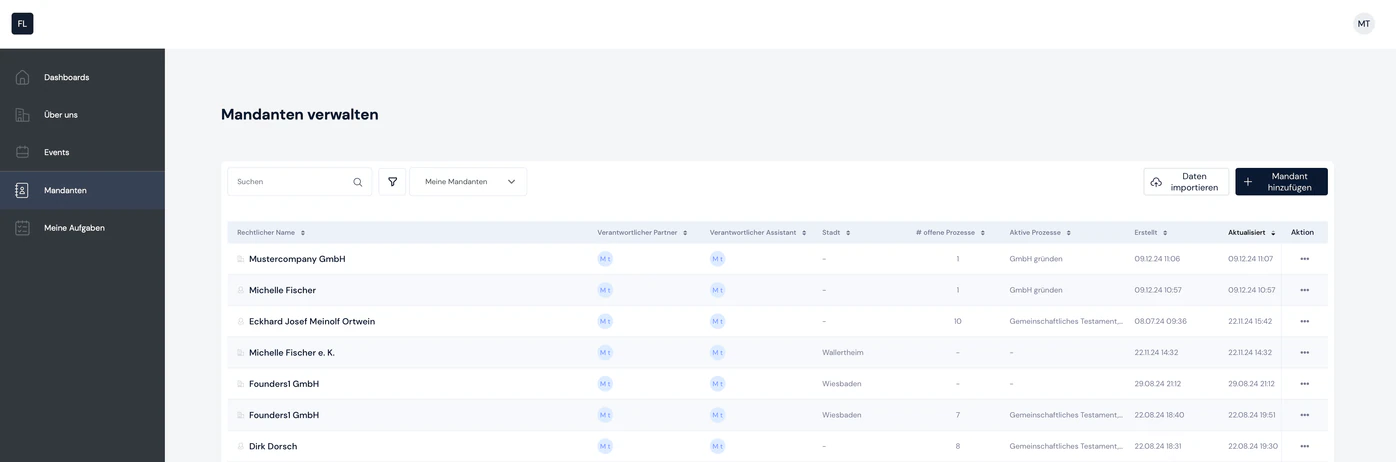
1. Select client
To do this, go to the "Manage clients" page and select the client you want
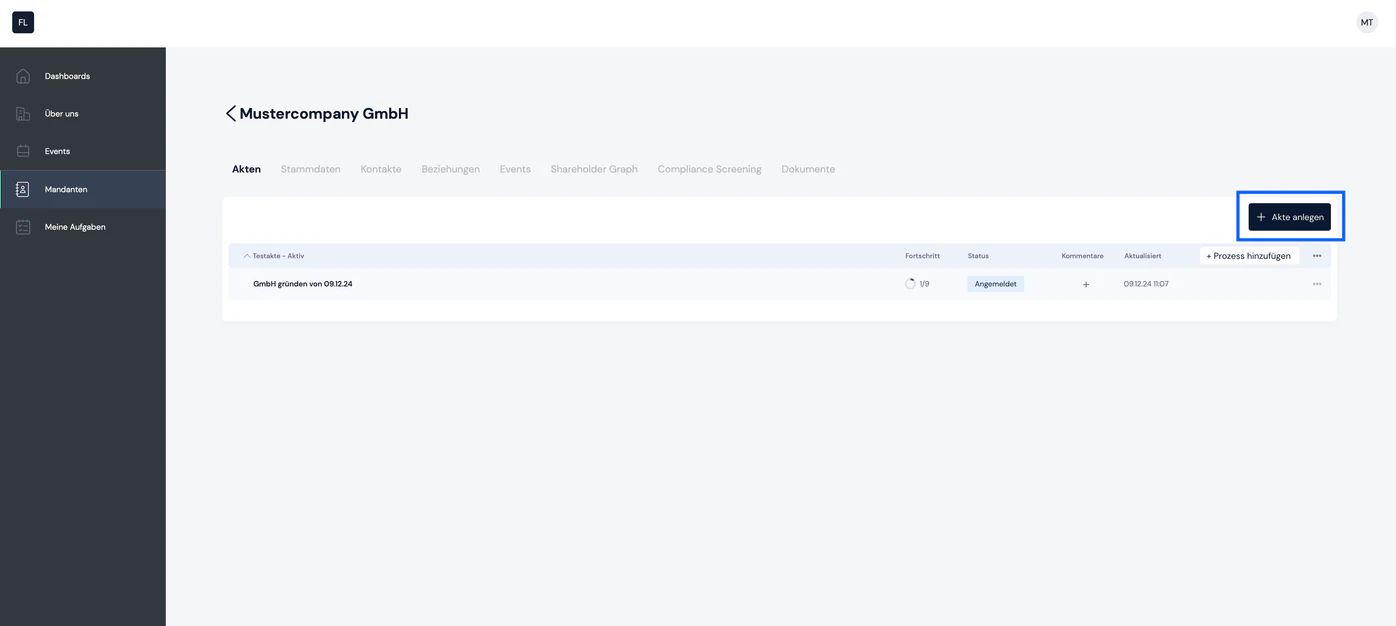
2. Click the "Create matter" button
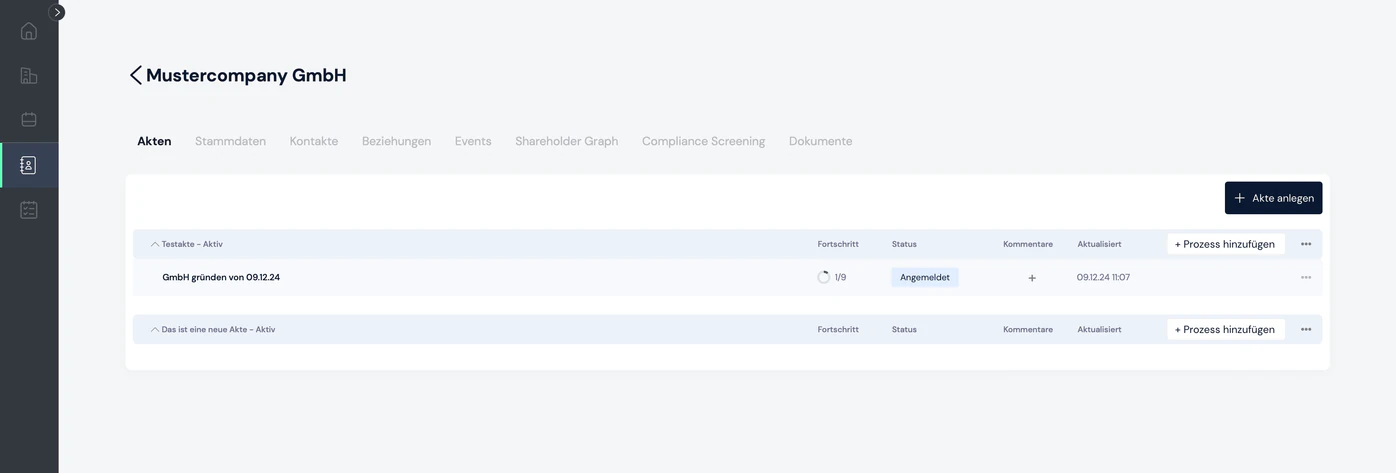
Once you have opened your client, the first tab, "Matters", lists all of the client's matters. Within each matter you will find all processes belonging to it. In our example, we created 1 matter ("Test matter") for the client "Mustercompany GmbH" with one process ("Found a GmbH").
In the top right-hand corner you will find a button labeled "Create matter".
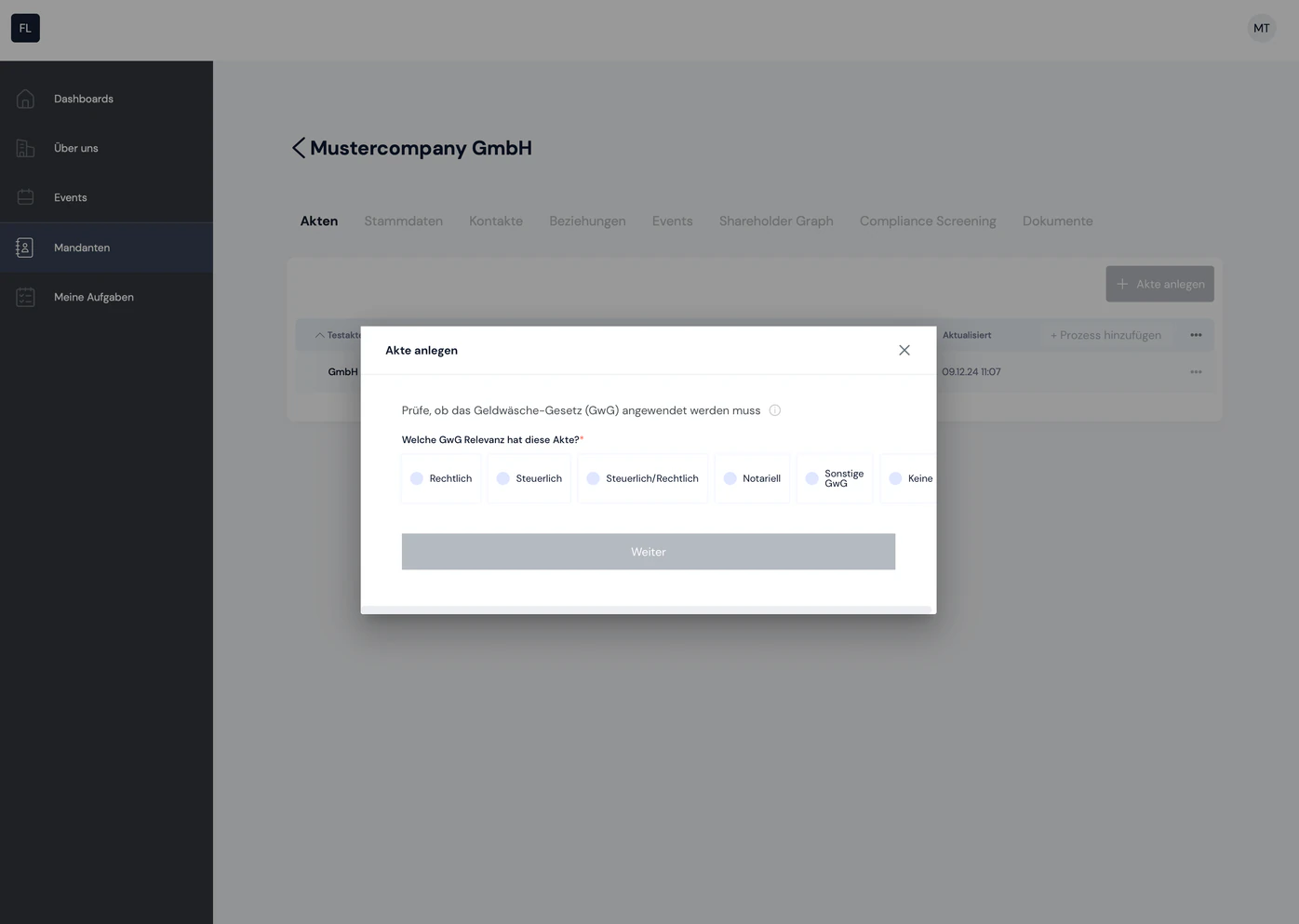
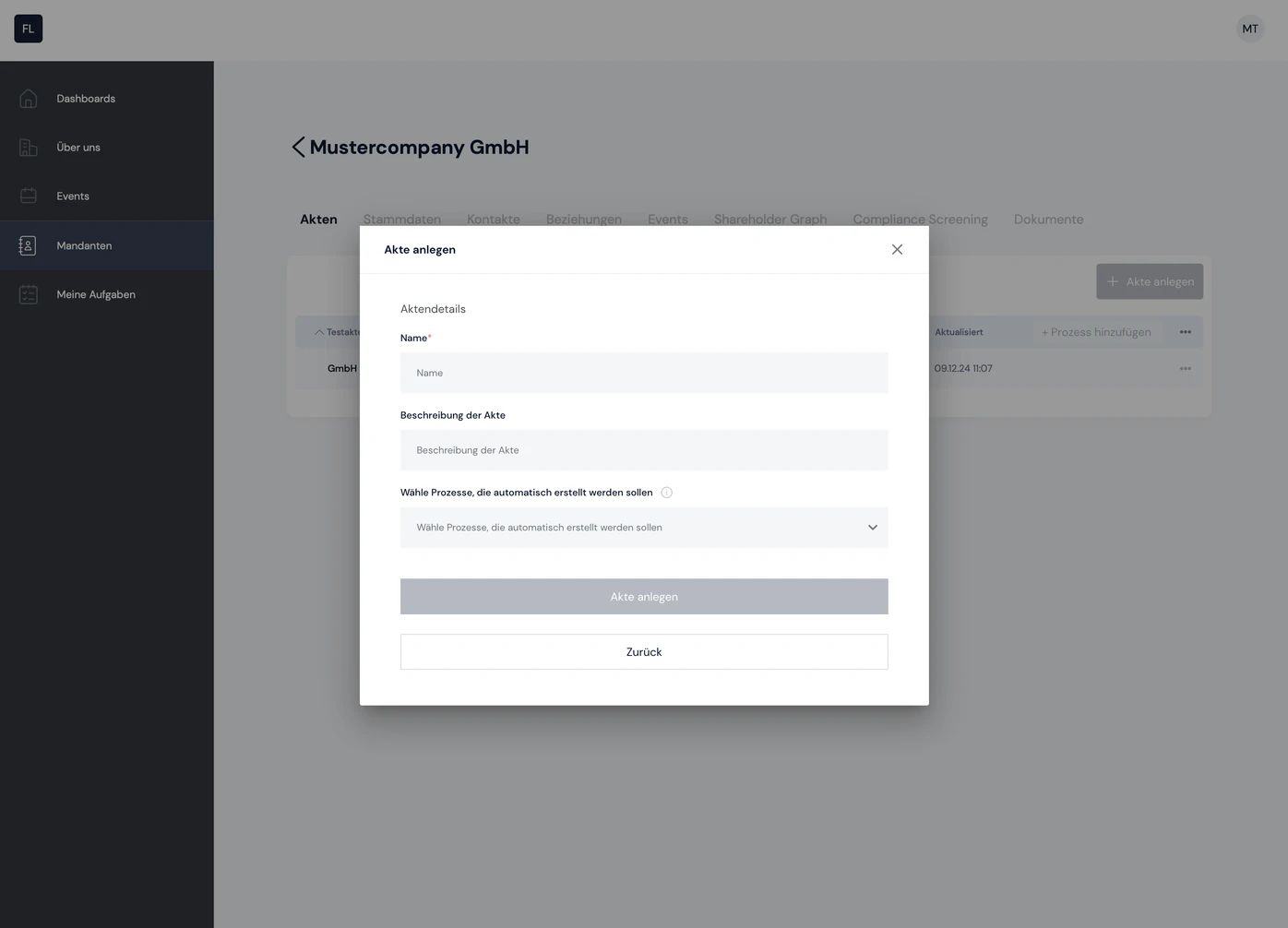
3. A popup opens
When you click it, a popup for creating the matter opens. You have the following settings when creating a new matter:
- GwG relevance
- Legal
- Tax
- Tax-legal
- Notarial
- Other GwG
- None
- Selection of so-called catalog transactions
- Matter name
- Matter description
- Selection of processes to be started directly when the matter is created, e.g.
- Initial inquiry
- Legal KYC
- Risk assessment
- Identity verification
- …
5. The matter is created
Once you have made all the settings you want, you can create the matter. It is then added to the client and appears in the list of matters.
Add a workflow to the matter
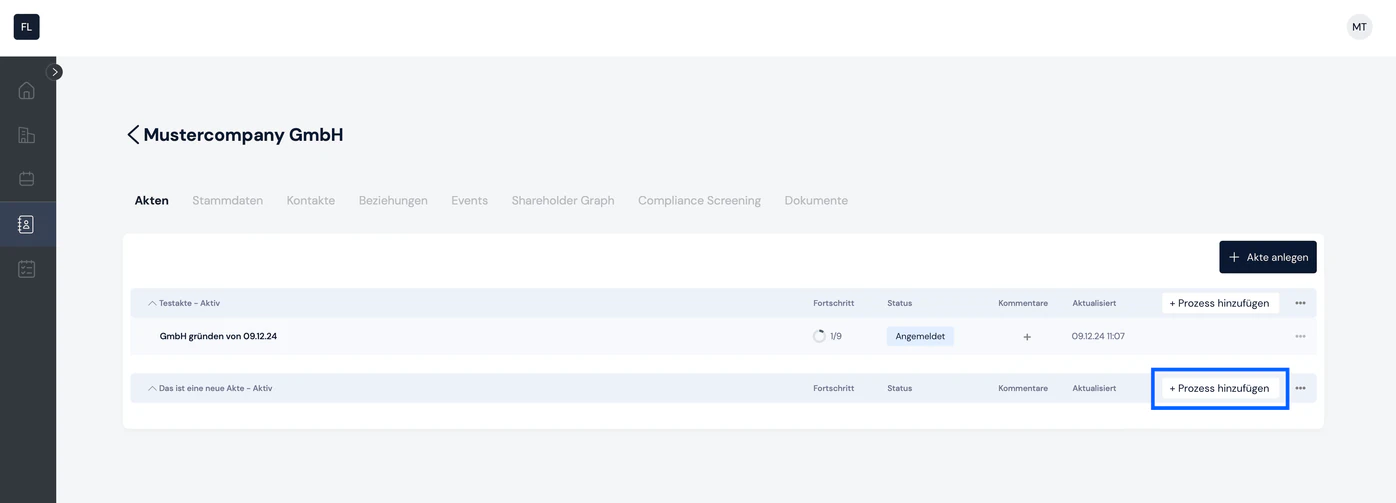
1. Click the "+ Add process" button
Now let's add a first workflow to the new matter. To do this, click the "+ Add process" button in the matter
2. Select the process you want
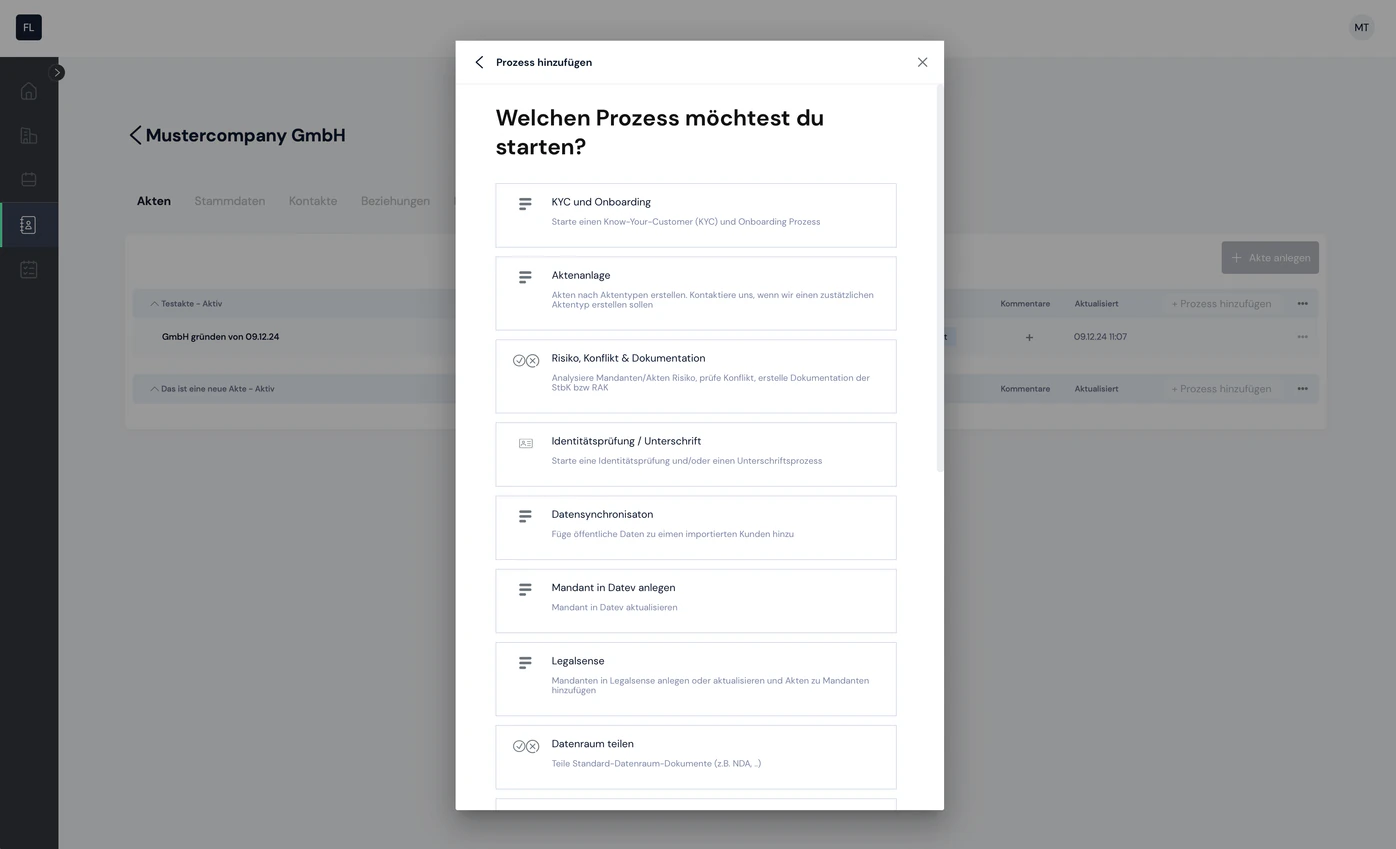
A popup opens showing the various workflow categories. First select the category you want (e.g. "Matter creation"). All workflows in this category are then available for selection (e.g. traffic accident, employment law, general inquiry, …).
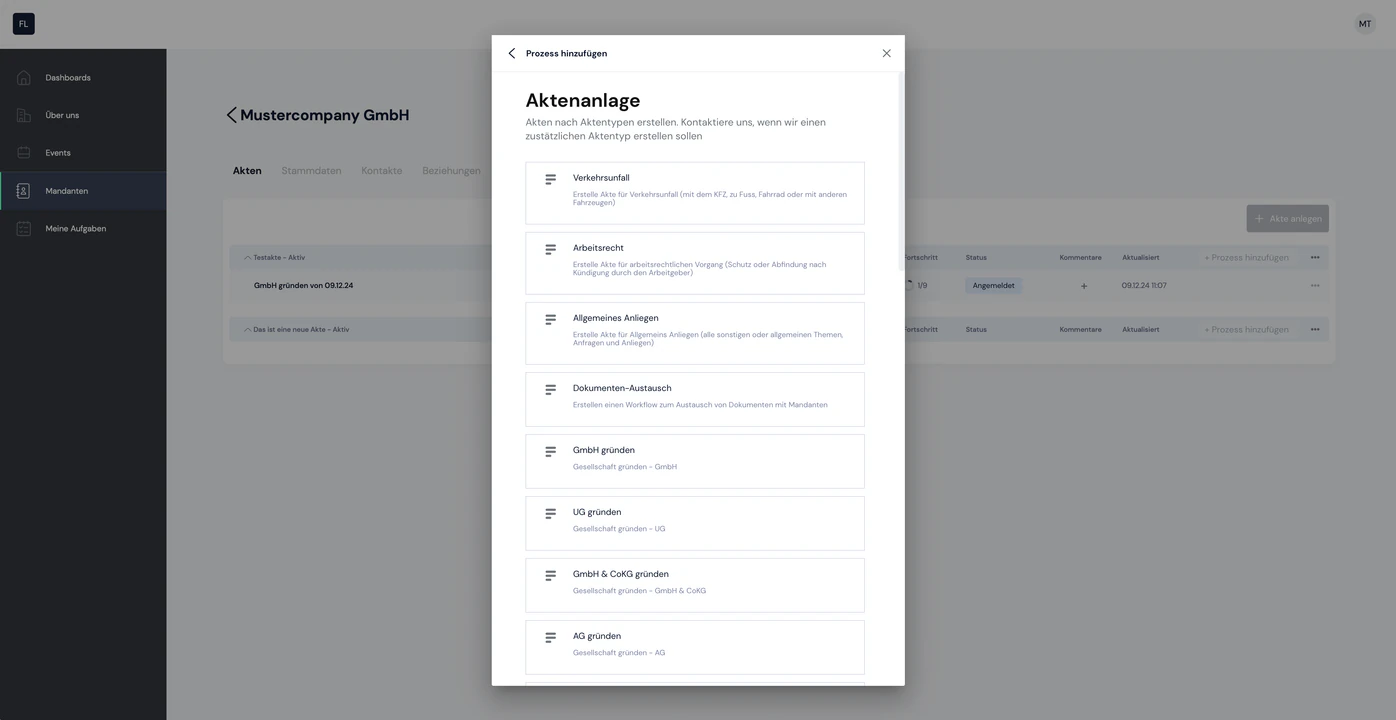
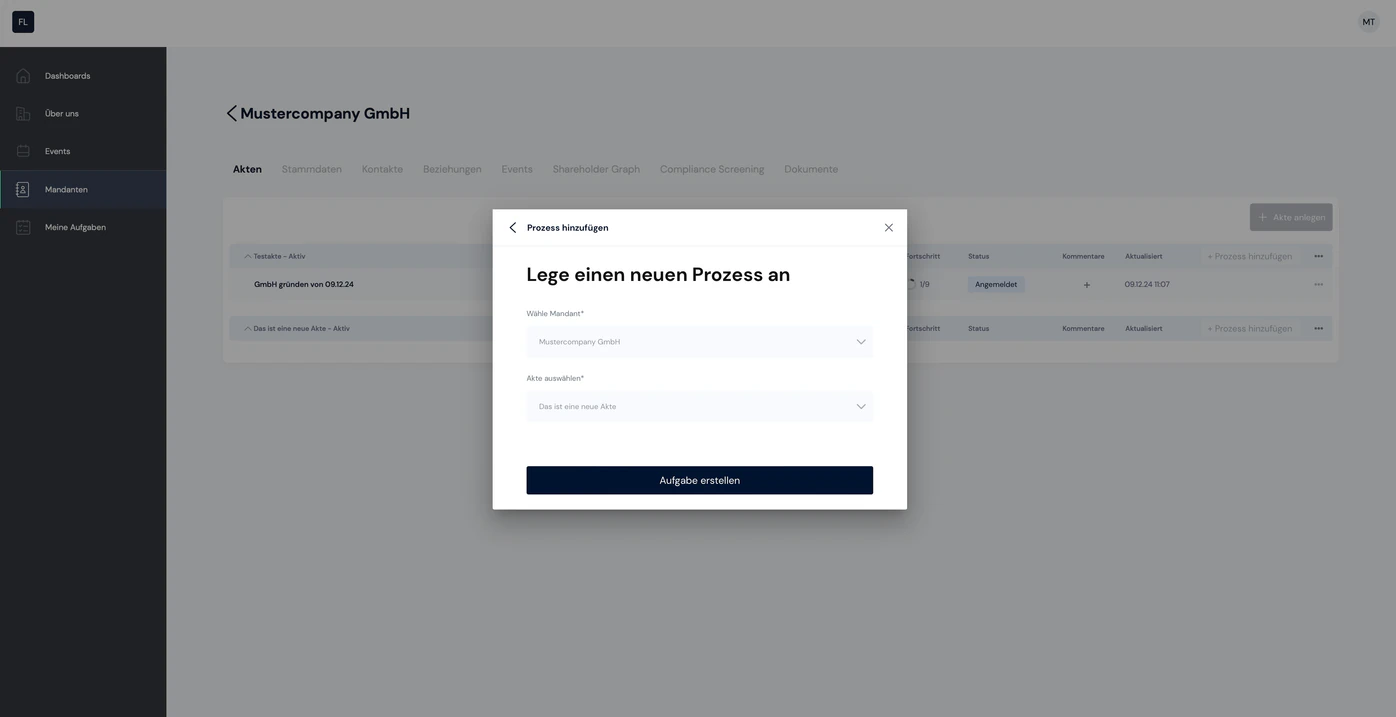
3. The workflow is added to the matter
The selected workflow is added to the matter. Please note that the same process cannot exist twice with the status "open" within one matter. This means that if you have a running KYC workflow, you cannot add a new KYC workflow to the matter. This is only possible again once the first KYC workflow has been marked as "completed".
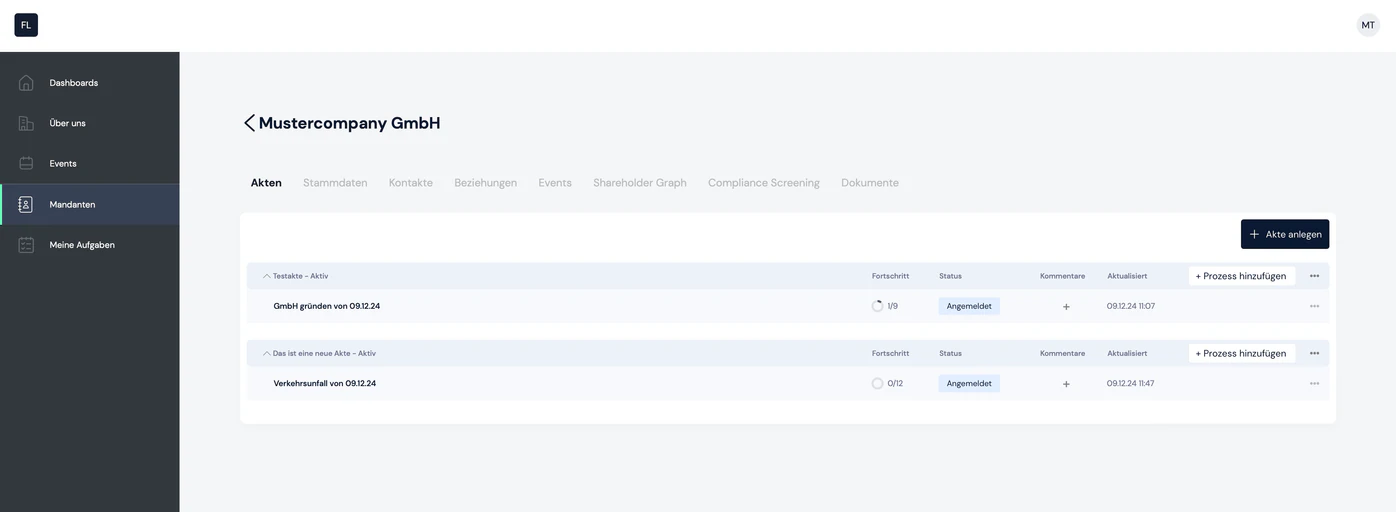
Manage a matter
The context menu (the icon with three dots) gives you the following options for managing the matter
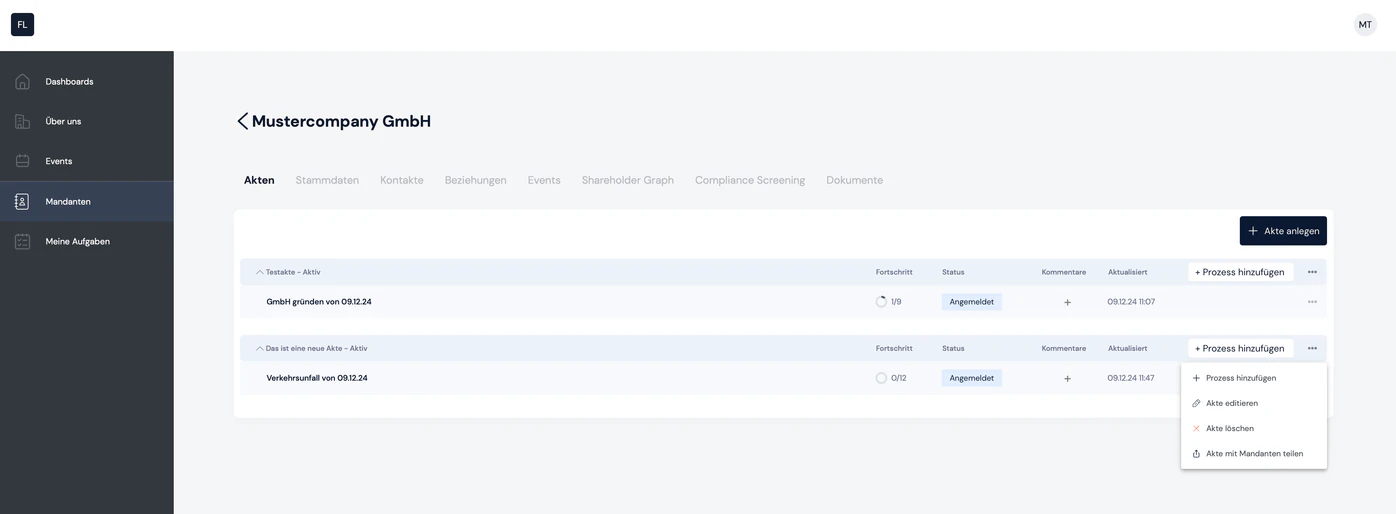
1. Add process
Here you can add new processes to this matter
2. Edit matter
When you click "Edit matter", a sidebar opens where you can edit the following properties:
- Matter name
- Status (active vs. inactive)
- Matter description
- List of all open processes + option to add new ones
- List of team members
- List of all matter participants + option to add new ones
3. Delete matter
Here you can delete the matter. A matter can be deleted once all processes it contains have been completed.
4. Share matter with client
This function lets you share the entire matter with your client. They can open the link and see all open processes, so you can work on the processes together.

Still have questions?
Contact us or book a 30-minute demo call directly with our founder Eckhard Ortwein.